JPEG files usually have the extension .jpg or .jpeg. It is a very widely used format, because it compresses images very efficiently, while minimizing the loss of image quality. It does not, however, support transparency, animation or multiple layers.
In the past, the jpeg format was considered the best choice when the file size was a concern due to its good compression. However, nowadays there are several other formats that surpass jpeg in reducing file size. Some examples supported by GIMP are HEIF, JPEG xl and WebP.
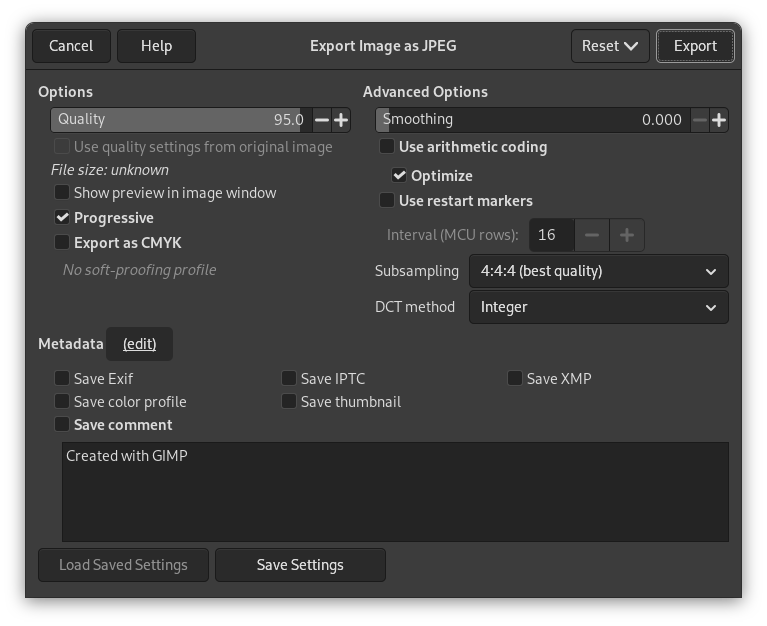
The JPEG algorithm is quite complex, which is reflected in its options. Most JPEG specific settings, except Quality, are usually left alone unless you understand what the effects of the setting are.
- Качество
-
The Quality level ranges from 0 to 100 and is an indication of the amount of expected artifacts. Because jpeg is a lossy format, there will always be a certain amount of loss of quality. For this reason, it is generally not a good idea to save jpeg images after altering them again and again, because each time you will loose a little more detail.
Values above 95, or even 90, are rarely useful and high values significantly increase the size of your jpeg images. The default quality of 85 usually produces excellent results, but in many cases it is possible to set the quality substantially lower without noticeably degrading the image. You can test the effect of different quality settings by checking Show Preview in image window in the JPEG dialog.
![[Примечание]](images/note.png)
Примечание Помните, что значения качества JPEG не постоянно между приложениями. Сохранение при качестве 80 в GIMP необязательно даст тот же результат, что и сохранение при качестве 80 в другом приложении.
- Использовать качественные характеристики исходного изображения
-
Если определённые настройки качества (или «таблицы квантования») были прикреплены к изображению во время загрузки, этот параметр позволяет использовать их вместо стандартных.
Если вы сделали только небольшие изменения в изображении, тогда повторное использование тех же настроек качества даст почти то же качество и размер файла, что и исходное изображение. Это минимизирует потери при квантовании, в сравнении с использованием полностью других настроек.
Если настройки качества в исходном изображении не лучше, чем настройки по умолчанию, то параметр «Использовать качественные характеристики исходного изображения» будет доступен, но не выбран. Это обеспечивает по крайней мере минимальное качество, указанное в настройках по умолчанию. Если вы сделали только небольшие изменения в изображении, то чтобы сохранить изображение с тем же качеством, что и исходное изображение, выберите этот параметр.
- Показывать предварительный просмотр в окне изображения
-
При выборе этого параметра каждое изменение в значении качества (и других параметров JPEG) отобразится в окне изображения. Этот процесс не меняет изображение, при закрытии диалога JPEG оно становится таким, каким было до открытия диалога.
Enabling this setting allows you to see an estimate of the file size of the jpeg image. Note this estimate does not include the metadata. If you enabled some or all of the metadata settings, the size will be more than shown, depending on the amount of metadata that was added to your image.
- Расширенные параметры
-
Некоторая информация о дополнительных настройках:
- Сглаживание
-
Сжатие JPEG создаёт нежелательные помехи. Используя этот параметр, их можно уменьшить при сохранении. При этом изображение станет немного размытым.
- Прогрессивная
-
При выборе этого параметра части изображения сохраняются таким образом, чтобы показывать изображение по мере загрузки при низких скоростях подключения к интернету. Назначение этого параметра такое же, что и у череcстрочности у GIF. К сожалению, с включённым параметром размер изображения увеличивается.
Примечание Имейте в виду, что старые телевизоры и фоторамки (а возможно, и другие устройства) не смогут показывать изображения в формате jpeg, которые были экспортированы с включённым параметром постепенного отображения (по умолчанию).
- Экспортировать как CMYK
-
If you have a CMYK profile assigned to your image as soft-proofing profile, this setting can be checked to have your image exported using that CMYK profile. This is sometimes required when you have your image professionally printed. Your printing company will tell you if this is needed.
If this setting is disabled, you don't have a soft-proofing profile set for this image yet. See assigning a Soft-Proof Profile.
The name of the CMYK profile that is assigned to this image will be shown below this setting.
- Использовать арифметическое кодирование
-
Арифметическое кодирование — это разновидность энтропийного кодирования (схема сжатия данных без потерь), которую можно использовать для экспорта в формат JPEG. Размер изображений, использующих арифметическое кодирование, может быть на 5—10% меньше. Но в более старых версиях программ могут возникнуть проблемы при открытии таких изображений.
- Оптимизировать
-
При выборе этого параметра кодирование параметров энтропии будет оптимизировано. Это уменьшит размер файла, но потребует больше времени.
- Использовать маркеры перезапуска
-
Файл изображения может содержать указатели, позволяющие загружать изображение по сегментам. Если подключение было прервано при загрузке изображения через интернет, то загрузка может продолжиться начиная со следующего указателя.
- Интервал (ряды минимальных закодированных единиц MCU)
-
Изображения JPEG хранятся в виде сжатых квадратных плиток, которые называются MCU (минимальная закодированная единица). Можно указать размер этих плиток (в пикселях).
- Субвыборка
-
The human eye is not sensitive in the same way over the entire color spectrum. The compression can use this to treat slightly different colors that the eye perceives as very close, as identical colors. The following methods are available:
- 4:4:4 (best quality)
-
This produces the best quality, preserving borders and contrasting colors, at the cost of not compressing as well as the other methods.
- 4:2:2 (chroma halved horizontally)
-
This is the standard subsampling, which usually provides a good ratio between image quality and file size. There are situations, however, in which using no subsampling (4:4:4) provides a noticeable increase in the image quality; for example, when the image contains fine details such as text over a uniform background, or images with almost-flat colors.
- 4:4:0 (chroma halved vertically)
-
This is similar to 4:2:2, but chroma is reduced in the vertical direction.
- 4:2:0 (chroma quartered)
-
This produces the smallest files. This suits images with weak borders but tends to denature colors.
- Метод DCT
-
DCT is «discrete cosine transform», and it is the first step in the JPEG algorithm going from the spatial to the frequency domain. The choices are:
- Fast Integer
-
This method is much less accurate than the other methods, but faster.
- Integer
-
This method is faster than Floating-Point, but not as accurate. This is the default.
- Floating-Point
-
This is slightly more accurate than the integer method, but is much slower unless your machine has very fast floating-point hardware. Also note that the results of the floating-point method may vary slightly across machines, while the integer methods should give the same results everywhere.
- Метаданные (изменить)
-
You can click the «(edit)» link to open the metadata editor to change or add any metadata that you want to be included in the image. Note: you will also still need to enable the relevant metadata saving options listed below.
The metadata settings in the export dialog override the default values set in your Metadata Export Preferences.
- Сохранить данные Exif
-
When this option is enabled, EXIF metadata will be saved in the exported image.
- Сохранить данные IPTC
-
When this option is enabled, IPTC metadata will be saved in the exported image.
- Сохранить данные XMP
-
When this option is enabled, XMP metadata will be saved in the exported image.
- Сохранить цветовой профиль
-
When this option is enabled, the color profile will be saved in the exported image.
- Сохранить миниатюру
-
When this option is enabled a thumbnail will be saved in the exported image as part of the EXIF metadata. This will also cause certain EXIF tags to be saved, even if you have disabled saving EXIF metadata.
- Сохранить комментарий
-
Вы можете прочитать этот комментарий в свойствах изображения.


