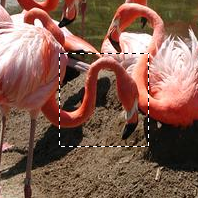
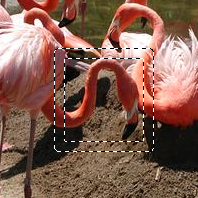
Elle modifie une sélection existante. La sélection résultante apparaîtra comme une bordure construite à cheval sur l’ancien bord.
You can access this command from the main menu through → .
If there is no selection, this menu entry is disabled.
Deux conditions doivent être respectées pour utiliser cette commande :
-
Cette commande doit avoir un canal alpha.
-
The original image must be created with the Antialiasing option checked in the selection tool that is used.
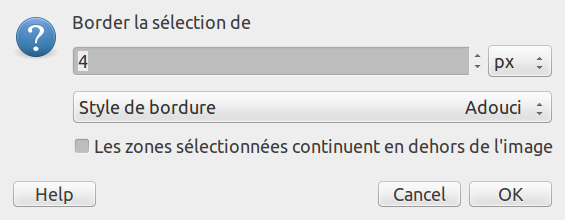
- Border la sélection de
-
Avec cette option, vous pouvez fixer la largeur de la bordure de sélection. La valeur par défaut est le pixel mais vous pouvez en changer grâce à la liste déroulante attenante.
- Style de bordure
-
-
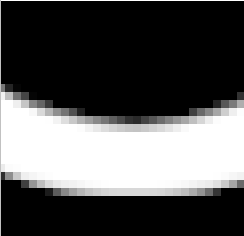
Hard: this option does not keep anti-aliasing. This can be useful in some cases.
-
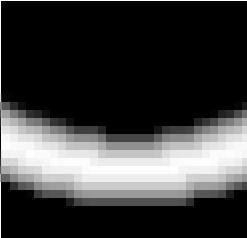
Smooth: this option keeps anti-aliasing. Note that « Smooth » does not create any anti-aliasing. That's why anti-aliasing must be added when creating the original selection. This option is the best one.
-
Feathered: this option does the same things as « Hard », but instead of the resulting border being fully selected, it fades outwards. The result is not very good; if you want a feathered border, it's better to use one of the other modes, and then feather the result. It exists for historical reasons.
Figure 16.29. Comparaison des styles de bordure
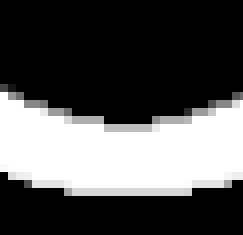
« Dur ». Éditeur de sélection, zoom 800%
« Lisse ». Éditeur de sélection, zoom 800%
« Adouci ». Éditeur de sélection, zoom 800%
-
- Les zones sélectionnées continuent en dehors de l’image
-
Quand cette option est cochée, un bord de la sélection reste inchangé s’il est aligné sur un bord de l’image. Aucune nouvelle sélection ne sera créée autour de lui.
Figure 16.30. Bordure de sélection avec ou sans « Les zones sélectionnées continuent en dehors de l’image ».
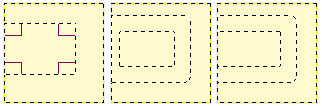
Bordure de sélection sans (au milieu) et avec (à droite) l’option.
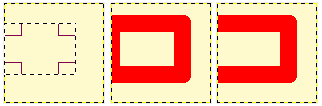
Les mêmes sélections remplies de rouge.


