The color balance tool modifies the color balance of the active selection or layer. Changes are not drastic. This tool is suitable to correct predominant colors in digital photos.
![[Not]](images/note.png)
|
Not |
|---|---|
|
This command does not work on Grayscale images. If the image is Grayscale, the menu entry is disabled. |
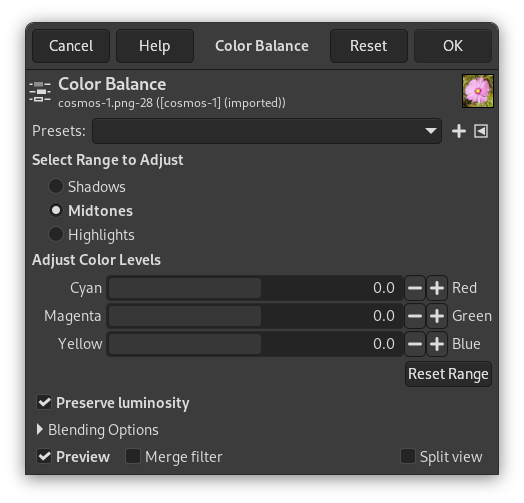
- Önayarlar, Harmanlama Seçenekleri, Ön izleme, Süzgeci birleştir, Bölünmüş görünüm
-
Not These options are described in Kısım 8.1.2, “Renkler Ortak Özellikler”.
- Select Range to Adjust
-
Selecting one of these options restricts the range of colors which are changed with the sliders or input boxes for Shadows (darkest pixels), Midtones (medium pixels) and Highlights (brightest pixels).
- Adjust Color Levels
-
Sliders and range from the three RGB colors to their complementary colors (CMY). The zero position corresponds to the current level value of pixels in the original image. You can change the pixel color either towards Red or Cyan, Green or Magenta, Blue or Yellow.
- Erimi Sıfırla
-
This button sets color levels of the selected range back to the zero position (original values).
- Preserve luminosity
-
This option ensures that brightness of the active layer or selection is maintained. The Value of brightest pixels is not changed.


