| Capítulo 6. Obtener imágenes de GIMP | ||
|---|---|---|

|
Parte II. ¿Cómo convertirse en un mago de GIMP? |  |
| Capítulo 6. Obtener imágenes de GIMP | ||
|---|---|---|
|
|
Parte II. ¿Cómo convertirse en un mago de GIMP? | |
Tabla de contenidos
GIMP es capaz de leer y escribir una gran variedad de archivos en formatos de gráficos. Con la excepción del tipo de archivo nativo de GIMP, XCF, la gestión de archivos se realiza mediante complementos. Esto significa que es relativamente fácil ampliar GIMP para que soporte formatos nuevos de archivo cuando sea necesario.
![[Nota]](images/note.png)
|
Nota |
|---|---|
|
Cuando abría una imagen en versiones anteriores de GIMP, digamos un JPG o un PNG, la imagen mantenía su formato y se guardaba en el mismo formato utilizando Guardar. Desde GIMP 2.8, todas las imágenes se importan en el formato XCF propio de GIMP, como un proyecto nuevo. Por ejemplo, una imagen “girasol.png” se cargará como “*[girasol] (importada)-1.0 (color indexado, 1 capa)”. El asterisco precedente indica que este archivo se ha modificado. Esta imagen se puede guardar como “girasol.xcf” al usar el comando Guardar. Para guardar esta imagen en un formato distinto, deberá usar el comando Exportar. |
Cuando termina de trabajar con una imagen, guardará los resultados. De hecho, suele ser buena idea guardar también en etapas intermedias. GIMP es un programa bastante robusto, pero en raras ocasiones se han producido cuelgues.
El formato XCF nativo de GIMP es especial. Es el único formato que puede almacenar todo sobre una imagen (con la excepción de la información “deshacer”). Esta es la razón por la que solo se puede guardar en este formato. Hace que el formato XCF sea especialmente adecuado para almacenar resultados intermedios y para guardar imágenes para volver a abrirlas más tarde en GIMP.
La mayoría de los otros programas que muestran imágenes no pueden leer los archivos XCF. Una vez que haya terminado de editar su imagen, puede exportarla al formato de su elección. GIMP admite una amplia variedad de formatos. La mayoría de los formatos de archivo que se pueden importar también se pueden usar para exportar.
Hay varios comandos para guardar y exportar imágenes. Puede encontrar una lista en la sección dedicada al menú Archivo. Además, puede encontrar más información sobre cómo utilizarlos.
GIMP le permite exportar las imágenes que crea en una amplia variedad de formatos. Es importante saber que el único formato capaz de guardar toda la información de una imagen, incluyendo capas, transparencia, etc., es el formato nativo de GIMP XCF. Cada uno de los otros formatos preserva algunas propiedades de la imagen y pierde otras. Depende del usuario que entienda las capacidades del formato que elige.
Exportar una imagen no modifica la imagen en sí, por lo que no perderá nada al exportarla. Consulte la sección Exportar archivos.
|
|
Nota |
|---|---|
|
Cuando cierra una imagen (posiblemente al cerrar GIMP), se le avisa si la imagen es «sucia»; es decir, si se ha modificado sin guardarse (aparece un asterisco delante del nombre de la imagen). Guardar una imagen en el formato de archivo nativo de GIMP, XCF, provoca que la imagen se considere «no sucia». Al contrario, al exportar una imagen no la cambiará a «no sucia», ya que GIMP no puede estar seguro de que no se perderá nada de información de la imagen. |
![[Aviso]](images/warning.png)
|
Aviso |
|---|---|
|
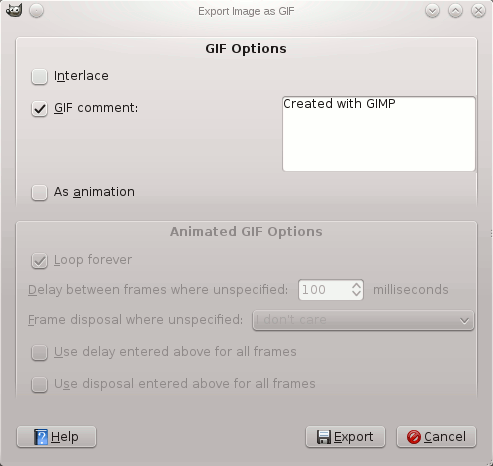
El formato de archivo GIF no soporta algunas propiedades básicas de la imagen como la resolución de impresión. Si le interesan esas propiedades, use un formato de archivo diferente como PNG. |
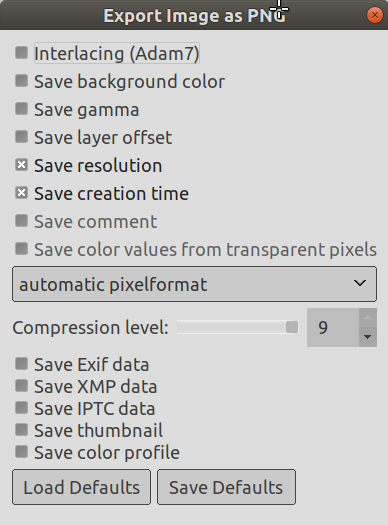
Marcar «entrelazar» permite que una imagen en una página web se muestre progresivamente según se descarga. La muestra progresiva de la imagen es útil en conexiones con velocidades bajas, porque puede para una imagen sin interés; entrelazar se usa poco hoy en día con las conexiones más rápidas.
Los comentarios de GIF sólo soportan caracteres ASCII de 7 bits. Si usa un carácter fuera del conjunto ASCII de 7 bits, GIMP guardará la imagen sin comentario y le informará de que no se guardó el comentario.
Cuando está opción está marcada, la animación se repetirá hasta que la pare.
Puede ajustar el retraso, en milisegundos, entre los cuadros si no se han ajustado antes. En este caso, puede modificar cada retraso en el diálogo de capas.
Si no se ha ajustado antes, puede ajustar cómo se superponen los cuadros. Puede seleccionar entre tres opciones:
No me importa: puede usar esta opción si todas las capas son opacas. Las capas se sobrescriben con la de abajo.
Capas acumulativas (combinar): los cuadros previos no se eliminan cuando se muestra uno nuevo.
Un cuadro por capa (reemplazar): los cuadros previos se eliminan antes de mostrar un cuadro previo.
Autoexplicativa.
Autoexplicativa.
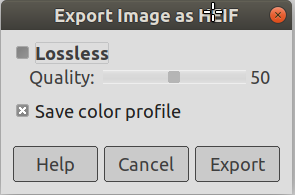
HEIF son las siglas de High Efficiency Image File Format (formato de archivo de imagen de alta eficiencia). También conocido como HEIC High Efficiency Image Coding (codificado de imagen de alta eficiencia).
Se puede almacenar el doble de información en una imagen HEIF que en una imagen JPEG del mismo tamaño, lo que da como resultado una mejor calidad. A partir de octubre de 2019, ningún navegador admite HEIF de forma nativa.
Más información en Wikipedia.
Estas opciones son evidentes.
Los archivos JPEG generalmente tienen la extensión .jpg, .JPG, o .jpeg. Es un formato ampliamente utilizado, porque comprime imágenes muy eficientemente, minimizando la pérdida de calidad. Ningún otro formato se le acerca para lograr el mismo nivel de compresión. No obstante, no soporta transparencia, ni múltiples capas.
El algoritmo JPEG es bastante complejo, y en él intervienen un gran número de opciones, cuyo significado está más allá del objetivo de esta documentación. A menos que sea un experto en JPEG, el parámetro de calidad es probablemente el único que necesitará ajustar.
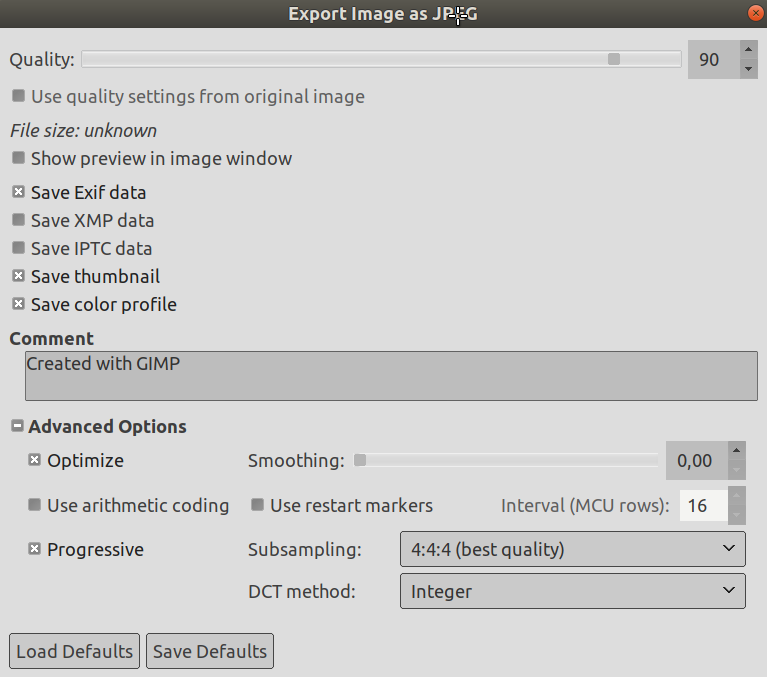
Al guardar un archivo en formato JPEG verá un diálogo que le permite ajustar el nivel de calidad, que tiene un rango de 0 a 100. Valores por encima de 95 no son necesarios generalmente. La calidad predeterminada es 85 y generalmente produce excelentes resultados, pero en algunos casos es posible ajustar la calidad sustancialmente baja sin que la imagen se vea notablemente afectada. Puede probar el resultado de diferentes calidades activando la opción Mostrar vista previa en la ventana de la imagen en el diálogo JPEG.
|
|
Nota |
|---|---|
|
Tenga en cuenta que los números para el nivel de calidad JPEG tienen un significado diferente en aplicaciones diferentes. Guardar con un nivel de calidad de 80 en GIMP no es necesariamente comparable con guardar con un nivel de calidad de 80 en una aplicación diferente. |
Si un ajuste particular de calidad (o una “cuantificación de cuadro”) se adjuntó a la imagen al cargarla, esta opción le permite usarlos en lugar de los estándares.
Si sólo ha hecho unos pocos cambios a la imagen, volver a usar el mismo ajuste de calidad le dará caso la misma calidad y tamaño de archivo que la imagen original. Esto reducirá las perdidas por el paso de la cuantificación, comparado con los que sucedería si usara un ajuste diferente de calidad.
Si los ajustes de calidad que se encuentran en el archivo original no son mejores que los ajustes de calidad predeterminados, la opción “Usar los ajustes de calidad de la imagen original” estará disponible pero no activada. Esto asegura que siempre obtendrá al menos la calidad especificada en sus ajustes predeterminados. Si no hace cambios mayores en la imagen y quiere guardarla usando la misma calidad que el original, puede hacer esto activando esta opción.
Al marcar esta opción cada cambio en la calidad (o en otro parámetro JPEG) se muestra en la pantalla de la imagen. (Esto no altera la imagen: la imagen vuelve a su estado original cuando se cierra el diálogo JPEG.)
Si la imagen que cargó tiene metadatos Exif, XMP, IPTC, estos se conservan y puede conservarlos o no al exportarlos a JPEG.
Muchas aplicaciones usan una imagen en miniatura para disponer rápidamente de una vista previa de la imagen.
Puede editar el comentario adjunto a la imagen que cargó o escribir uno nuevo.
Algo de información sobre la configuración avanzada:
Si activa esta opción, se usará la optimización de los parámetros de codificación de la entropía. El resultado generalmente es un archivo más pequeño, pero necesita más tiempo para generarse.
La compresión JPEG crea artefactos. Usando esta opción, puede suavizar la imagen al guardar, reduciéndolos. Pero su imagen se vuelve algo desenfocada.
Arithmetic encoding is a form of entropy encoding (a lossless data compression scheme) that, since GIMP-2.10 can be used in exporting as JPEG. Images using arithmetic encoding can be 5 - 10 % smaller. But older software may have trouble opening these images.
Los archivos de la imagen pueden incluir marcadores que permiten que la imagen se cargue como segmentos. Si una conexión se rompe mientras se carga la imagen en una página web, la carga se puede reiniciar desde el marcador siguiente.
Las imágenes JPEG se almacenan como una serie de mosaicos cuadrados comprimidos llamados MCU (unidad mínima de codificación). Puede establecer el tamaño de estos mosaicos (en píxeles).
Con esta opción activada, los fragmentos de la imagen se guardan en el archivo de manera que permita un refinamiento progresivo de la imagen durante la descarga web en una conexión lenta. La opción progresivo para JPEG tiene el mismo propósito que la opción entrelazar de GIF. Desafortunadamente, la opción progresivo produce archivos JPEG más grandes (que sin la opción progresivo).
|
|
Nota |
|---|---|
|
Tenga en cuenta que es posible que ciertos televisores y marcos de fotos antiguos (y quizás otros dispositivos) no puedan mostrar imágenes jpeg que se hayan exportado con la configuración progresiva activada (que es la predeterminada). |
El ojo humano no es sensible de la misma manera al espectro entero de color. La compresión puede usar esto para tratar los colores ligeramente distintos, que el ojo percibe muy cercanos, como colores idénticos. Hay tres métodos disponibles:
1x1,1x1,1x1 (mejor calidad): Generalmente se refiere a (4:4:4), esto produce la mejor calidad, preservando los bordes y el contraste de los colores, pero la compresión es menor.
2x1,1x1,1x1 (4:2:2): Es el submuestreo estándar, que generalmente proporciona una buena relación entre la calidad de la imagen y el tamaño de archivo. Hay situaciones, sin embargo, en que el uso sin submuestreo (4:4:4) proporciona un incremento notable de la calidad de la imagen: por ejemplo, cuando la imagen contiene detalles finos como texto sobre un fondo uniforme, o imágenes con colores planos.
1x2,1x1,1x1 Es similar a (2x1,1x1,1x1), pero el submuestreo del croma es en dirección horizontal más que en dirección vertical; como si alguien rotase una imagen.
2x2,1x1,1x1 (smallest file): Generalmente se refiere a (4:1:1), esto produce los archivos más pequeños. Se adapta a imágenes con bordes escasos pero tiende a desnaturalizar los colores.
DCT es “transformada discreta del coseno” y es el primer paso que realiza el algoritmo JPEG para ir del dominio espacial al de frecuencias. Las opciones son “coma flotante”, “entero” (predeterminado), y “entero rápido”.
“coma flotante”: El método de coma flotante es ligeramente más preciso que el método entero, pero a la vez es mucho más lento a menos que su ordenador tenga hardware que trabaje rápido con puntos de coma flotante. Además tenga en cuenta que los resultados del método de punto de coma flotante pueden variar un poco de un ordenador a otro, mientras que los métodos de enteros deberían dar el mismo resultado siempre.
entero (predeterminado): Este método es más rápido que “coma flotante”, pero menos preciso.
“entero rápido”: Este método es mucho menos preciso que los otros dos.
Marcar «entrelazar» permite que una imagen en una página web se muestre progresivamente según se descarga. La muestra progresiva de la imagen es útil en conexiones con velocidades bajas, porque puede para una imagen sin interés; entrelazar se usa poco hoy en día con las conexiones más rápidas.
Si su imagen tiene muchos niveles de transparencia, los navegadores de Internet que sólo reconocen dos niveles, usarán el color de fondo de su caja de herramientas en su lugar.
La corrección gamma es la habilidad de corregir las diferencias en cómo los ordenadores interpretan los valores de color. Esta guarda la información gamma en el PNG que refleja el factor de gamma actual para su pantalla. Los visores de otros ordenadores pueden compensar para asegurar que la imagen no sea muy oscura o muy clara.
PNG soporta un valor de desplazamiento llamado “oFFs chunk”, que proporciona datos de la posición. Por desgracia, el soporte de desplazamiento PNG en GIMP no funciona, o al menos no es compatible con otras aplicaciones y es así desde hace mucho tiempo. No active los desplazamientos, deje que GIMP aplane las capas antes de guardar y no tendrá problemas.
Guardar la resolución de la imagen, en PPP (puntos por pulgada).
Fecha en que se guardó el archivo.
Puede leer este comentario en las propiedades de la imagen.
Cuando esta opción está marcada, los valores de color se guardan incluso si los píxeles con completamente transparentes. Pero esto sólo es posible con una única capa, no con una composición mezclada. Cuando se exporta una imagen con varias capas a un formato de archivo de una sola capa, no hay manera de que GIMP guarde los valores de color en los píxeles transparentes.
By default your PNG image is exported in a pixelformat that resembles the settings of your image in GIMP. This is usually what you want, but when you need a specific output format you can change this here to 8 or 16 bits per channel RGB or Grayscale, with or without alpha channel.
Ya que la compresión no tiene pérdida, la única razón para usar un nivel de compresión menor que 9 es si se necesita mucho tiempo para comprimir un archivo en un ordenador lento. No hay nada que temer en la descompresión: es igual de rápido cualquiera que sea el nivel de compresión.
Si la imagen que cargó tiene metadatos Exif, XMP, IPTC, estos se conservan y puede conservarlos o no al exportarlos a PNG.
Pulse para guardar los ajustes actuales. Más tarde, puede usar para cargar los ajustes guardados.
|
|
Nota |
|---|---|
|
El formato PNG soporta imágenes indexadas. El uso de menos colores da como resultado un archivo más pequeño; esto es especialmente útil para crear imágenes web; consulte la Sección 6.6, “Modo indexado”. Los ordenadores trabajan con bloques de 8 bits llamados “Byte”. Un byte permite 256 colores. Reducir el número de colores por debajo de 256 no es útil: se usará un byte de todos modos y el archivo no será más pequeño. Además, este formato “PNG8”, como el GIF, sólo usa un bit para la transparencia; sólo hay dos niveles de transparencia, transparente u opaco. |
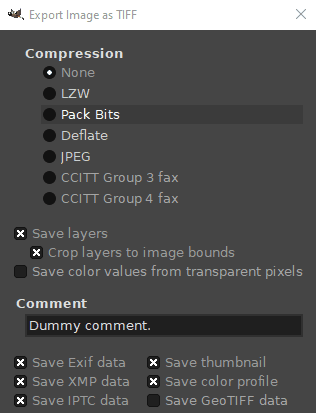
Esta opción le permite especificar el algoritmo usado para comprimir la imagen.
Ninguno: es rápido y sin pérdida, pero el archivo resultante puede ser muy grande.
LZW: la imagen se comprime usando el algoritmo “Lempel-Ziv-Welch”, una técnica de compresión sin pérdida. Es eficiente y rápido. Puede encontrar más información en la [WKPD-LZW].
Paquetes de bits: es rápido, un esquema sencillo de compresión para la duración de la codificación de datos. Apple introdujo el formato de paquetes de bits con la realización de «Macpaint» en el ordenador Macintosh. Un flujo de datos de paquetes de bits consiste en paquetes de un byte de cabecera seguido de datos. (Fuente: [WKPD-PACKBITS])
Desinflado: es un algoritmo de compresión sin pérdida de datos que usa una combinación del algoritmo LZ77 y la codificación de Huffman. También se usa en los archivos Zip y Gzip y en las imágenes PNG. Fuente: [WKPD-DEFLATE].
JPEG: es un muy buen algoritmo de compresión pero con pérdidas. Esta es la misma compresión que se usa en las imágenes JPEG. Dado que tiene pérdida, no debe usar cuando la calidad de la imagen es importante. Esta compresión no se puede utilizar cuando su imagen está en modo indexado.
Fax CCITT grupo 3 y Fax CCITT grupo 4 son formatos en blanco y negro desarrollados para transferir imágenes por fax.
|
|
Nota |
|---|---|
|
Estos dos modos de compresión sólo se pueden seleccionar, si la imagen está en modo indexado y reducida a dos colores. Use → → para convertir la imagen a modo indexado. Asegúrese de marcar “Usar paleta en blanco y negro (1-bit)”. |
Desde GIMP-2.10.12, puede guardar capas al exportar a TIFF. Cada capa será una página separada en la imagen TIFF.
Cuando se marca Guardar capas, esta opción, que está activada de manera predeterminada, cambiará el tamaño de todas las capas al tamaño de la imagen. Las imágenes TIFF no pueden tener desplazamientos negativos. Esta opción le permite importar el TIFF nuevamente sin tener que cambiar la posición de las capas que tenían un tamaño diferente al de la imagen original.
Cuando esta opción está activada, los valores de color se guardan incluso si los píxeles son completamente transparentes.
En esta caja de texto, puede introducir un comentario que se asocia con la imagen.
Cuando esta opción está activada, los metadatos Exif existentes se guardarán en la imagen TIFF exportada.
Cuando esta opción está activada, los metadatos XMP existentes se guardarán en la imagen TIFF exportada.
Cuando esta opción está activada, los metadatos IPTC existentes se guardarán en la imagen TIFF exportada.
Cuando esta opción está activada, se guardará una miniatura como la segunda página en la imagen TIFF exportada. Esto también hará que se guarden ciertas etiquetas Exif incluso si ha desactivado el almacenamiento de metadatos Exif.
Cuando esta opción está activada, el perfil de color se guardará en la imagen TIFF exportada.
Cuando esta opción está activada, los metadatos GeoTIFF que estaban presentes en la imagen original se guardarán en la imagen TIFF exportada.
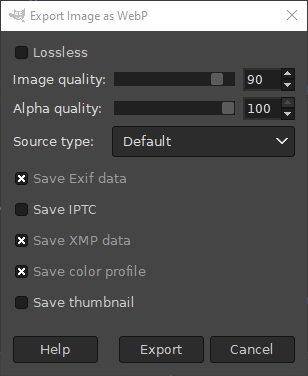
When checked, the image will be saved in a way that keeps the original quality. This disables the Image quality and Alpha quality settings. When unchecked, the image will be saved based on the quality settings below, which may cause some loss of quality, but at a better compression ratio. This is the default.
These settings determine at what quality the image will be saved. A higher image quality usually means a larger filesize. When filesize is important you can check if a lower quality is still good enough for your purposes.
This selects the type of image you are trying to export. Presumably this will help in deciding the best way to compress the image.
Choices are: Default, Picture for digital pictures, like portraits or inside shots, Photo for outdoor photography with natural lighting, Drawing for hand or line drawing, with high-contrast details, Icon for small-sized colorful images, and Text for images containing mostly text.
When this option is enabled existing EXIF metadata will be saved in the exported image.
When this option is enabled existing IPTC metadata will be saved in the exported image.
When this option is enabled existing XMP metadata will be saved in the exported image.
When this option is enabled the color profile will be saved in the exported image.
When this option is enabled a thumbnail will be saved in the exported image.
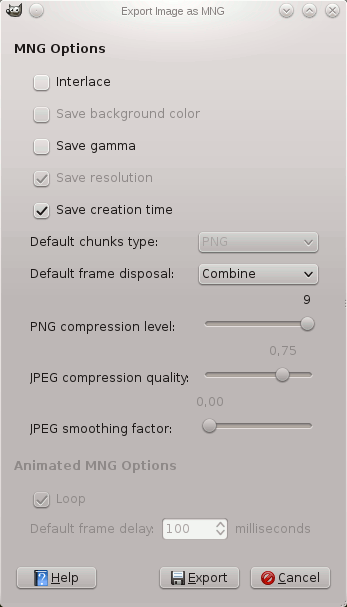
MNG es el acrónimo de “Multiple-Image Network Graphics”.
El problema principal es que Konqueror es el único navegador web que reconoce las animaciones en formato MNG. Consulte http://en.wikipedia.org/wiki/Multiple-image_Network_Graphics.