| 6. Pinceles | ||
|---|---|---|

|
Capítulo 7. Pintar con GIMP |  |
| 6. Pinceles | ||
|---|---|---|
|
|
Capítulo 7. Pintar con GIMP | |
Figura 7.15. Ejemplo de pinceladas
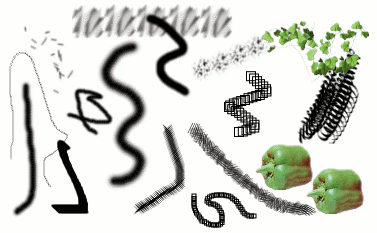
Varios trazos pintados con diferentes pinceles de los suministrados por GIMP. Todas fueron pintadas con la herramienta pincel.
Un pincel es un mapa de píxeles o un conjunto de mapas de píxeles que se usan para pintar. GIMP incluye un conjunto de diez “herramientas de pintura”, que no sólo se emplean para pintar, como se supone, sino que también pueden borrar, copiar, difuminar, aclarar u oscurecer, etc. Todas las herramientas de pintura, exceptuando a la herramienta de tinta, usan el mismo conjunto de pinceles. Los mapas de píxeles de los pinceles representan la estampa que se hace con un “toque” del pincel en la imagen. Un trazo de pincel, generalmente realizado moviendo el puntero a través de la imagen con el botón del ratón presionado, produce una serie de estampas espaciadas a lo largo de la trayectoria, de una manera especificada por las características del pincel y de la herramienta de pintura que se emplee.
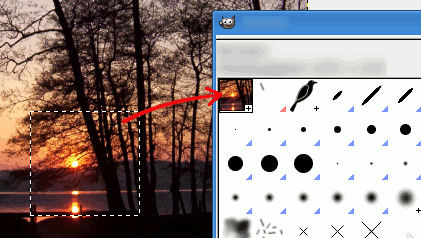
Se puede seleccionar el pincel pulsando sobre un icono en el diálogo de pinceles. El pincel activo de GIMP se muestra en el área pincel/patrón/degradado de la caja de herramientas. Una forma de activar el diálogo de pinceles es pulsar en el símbolo del pincel.
Cuando instala GIMP, viene con un número de pinceles básicos, más unos un poco extraños que sirven principalmente como ejemplo de lo que es posible hacer (por ejemplo el pincel «pimiento verde» de la ilustración). Puede crear pinceles nuevos, o descargarlos e instalarlos para que GIMP los reconozca.
GIMP puede usar varios tipos diferentes de pinceles. Sin embargo, todos ellos se usan de la misma forma, y en general no necesita preocuparse por las diferencias cuando pinte con ellos. Aquí están los tipos de pinceles disponibles:
La mayor parte de los pinceles que proporciona GIMP están en esta categoría. Se representan en el diálogo de pinceles como mapas de píxeles en escala de grises. Cuando pinta usándolos, el color activo de primer plano se sustituye por el negro (que se muestra en el área de color de la caja de herramientas), y el mapa de píxeles que se muestra en el diálogo de pinceles representa la marca que hace el pincel en la imagen.
Para crear uno de estos pinceles: cree una imagen pequeña en escala de grises usando ampliación. Guárdela con la extensión «.gbr». Pulse sobre el botón actualizar en el diálogo de pinceles para obtener la vista previa sin necesidad de reiniciar GIMP.
Los pinceles de esta categoría se representan con imágenes a color en el diálogo de pinceles. Puede haber imágenes o texto. Cuando pinta con ellos, los colores se utilizan como se muestra: el color de primer plano no entra en juego. Por lo demás funcionan como los pinceles ordinarios.
Para crear uno de estos pinceles: cree una imagen RGBA pequeña. Para hacerlo, abra una imagen nueva, seleccione RGB para el tipo de imagen y el relleno transparente. Dibuje su imagen y guárdela primero como un archivo «.xcf» para conservar sus propiedades. Después guárdela con formato .gbr. Pulse sobre el botón Actualizar en el diálogo de pinceles para obtener su pincel sin necesidad de reiniciar GIMP.
![[Sugerencia]](images/tip.png)
|
Sugerencia |
|---|---|
|
Cuando copia o corta sobre una selección, ve el contenido del portapapeles (que es la selección) en la primera posición en el diálogo de pinceles. Y puede usarla para pintar. |
Los pinceles de esta categoría pueden hacer más de un tipo de estampa sobre la imagen. Se indican con un pequeño triángulo rojo en la esquina inferior derecha del icono del pincel en el diálogo de pinceles. Se llaman «pinceles animados» porque la estampa va cambiando a lo largo del trazo. En principio, estos pinceles pueden ser muy complejos, especialmente si usa una tableta, la forma puede cambiar en función de la presión, el ángulo, etc. Estas posibilidades no se han explotado realmente, y las proporcionadas con GIMP son bastante simples (pero bastante útiles).
Puede encontrar un ejemplo de cómo crear algunos pinceles en pinceles animados
Además del mapa de píxeles, todo pincel de GIMP tiene otra propiedad importante: su espaciamiento. Éste representa la distancia entre las estampas consecutivas cuando se efectúa un trazo continuo. Cada pincel tiene asignado un valor predeterminado, el que puede modificarse empleando el diálogo de pinceles.
Ahora, todos los pinceles tienen un tamaño variable. De hecho, en las opciones de todas las herramientas de pintura hay un deslizador para escalar el pincel activo. Puede hacer esto directamente en la ventana de la imagen si configura adecuadamente la rueda del ratón; consulte variar el tamaño del pincel.
Además del mapa de píxeles del pincel, cada pincel de GIMP tiene otra propiedad importante: el Espaciado. Éste representa la distancia entre las marcas consecutivas cuando se pinta con un trazo continuo. Cada pincel tiene un valor asignado predefinido, que se puede modificar en el diálogo de pinceles.
![[Nota]](images/note.png)
|
Nota |
|---|---|
|
GIMP-2.10 puede usar pinceles MyPaint. Consulte Sección 3.8, “Pincel MyPaint” para más información. |