| 2. Creazione e uso delle selezioni | ||
|---|---|---|
 |
Capitolo 7. Dipingere con GIMP |  |
| 2. Creazione e uso delle selezioni | ||
|---|---|---|
| |
Capitolo 7. Dipingere con GIMP | |
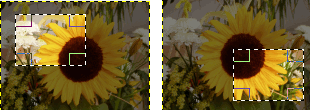
Le selezioni rettangolare ed ellittica vengono mostrate in due modalità. Quella predefinita è con maniglie. Se si fa clic sulla selezione o si preme il tasto Invio, si ottiene invece la forma con il tratteggio lampeggiante e senza maniglie. Gli altri strumenti di selezione hanno un comportamento differente.
Se si fa clic e si trascina una selezione con maniglie, si spostano i confini della selezione senza muovere il contenuto della selezione ellittica o rettangolare.
Usare lo strumento Sposta ed impostare le opzioni per spostare la delimitazione della selezione. Lo strumento può gestire lo spostamento di selezioni, tracciati o livelli.
Molti sistemi supportano lo spostamento della selezione usando i tasti freccia. Il preciso comportamento dello strumento dipende dal sistema. Se i tasti freccia non provocano lo spostamento della selezione, provare prima a passare con il puntatore del mouse sopra la selezione. Premere e tener premuto il tasto Alt (o Ctrl+Alt, Maiusc+Alt, o Alt). Una combinazione può spostare la selezione di un pixel alla volta, un'altra può invece provocarne lo spostamento di 25 alla volta. Portando il puntatore del mouse sopra un appiglio di spigolo o del bordo, insieme ai tasti freccia, si può modificare la dimensione della selezione.
Se si fa clic e si trascina la selezione senza maniglie, si crea una nuova selezione! Per muovere il contenuto della selezione è necessario
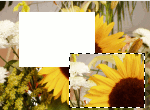
mantenere premuti i tasti Ctrl+Alt mentre si fa clic e si trascina la selezione, rende la posizione originale vuota. Inoltre viene creata una selezione flottante. I tasti da premere potrebbero essere diversi nel proprio sistema operativo; si suggerisce di osservare la barra di stato per vedere se viene specificata un'altra combinazione di tasti; per esempio, Maiusc+Ctrl+Alt.
Figura 7.6. Spostamento di una selezione con il suo contenuto, lasciando vuota la posizione originale
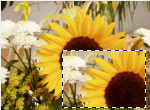
mantenendo premuti i tasti Maiusc+Alt e facendo clic e trascinando, la selezione si sposta senza svuotare la posizione originale. Inoltre viene creata una selezione flottante.
![[Nota]](images/note.png)
|
Nota |
|---|---|
|
Su alcuni sistemi, è preferibile premere prima il tasto Alt, altrimenti se si premono prima i tasti Maiusc o Ctrl, GIMP finirà per aggiungere/sottrarre alla modalità di selezione corrente, dopodiché il tasto Alt sarà del tutto inefficace. |
Gli altri tipi di selezione (Selezione a mano libera, fuzzy e per colore) non hanno maniglie. Facendo clic e trascinando non le si muove. Per spostare i contenuti di queste ultimi, come per le selezioni rettangolari ed ellittiche, è necessario mantenere premuti i tasti Ctrl+Alt o Maiusc+Alt, fare clic e trascinare.
Se si usano i tasti freccia invece di fare clic e trascinare, si spostano il limiti della selezione.
|
|
Nota |
|---|---|
|
È possibile usare anche un metodo più indiretto per spostare una selezione: basta renderla fluttuante. Poi si può spostarne i contenuti, svuotandone l'origine, sia con il trascinamento che con i tasti freccia. Per spostare la selezione senza svuotarne l'origine basta fare una copia e poi incollare. |